

Create a Checkout Link
Checkout Links can be managed from the Checkout Links tabs of the Products section. Click on New Link to create a new one.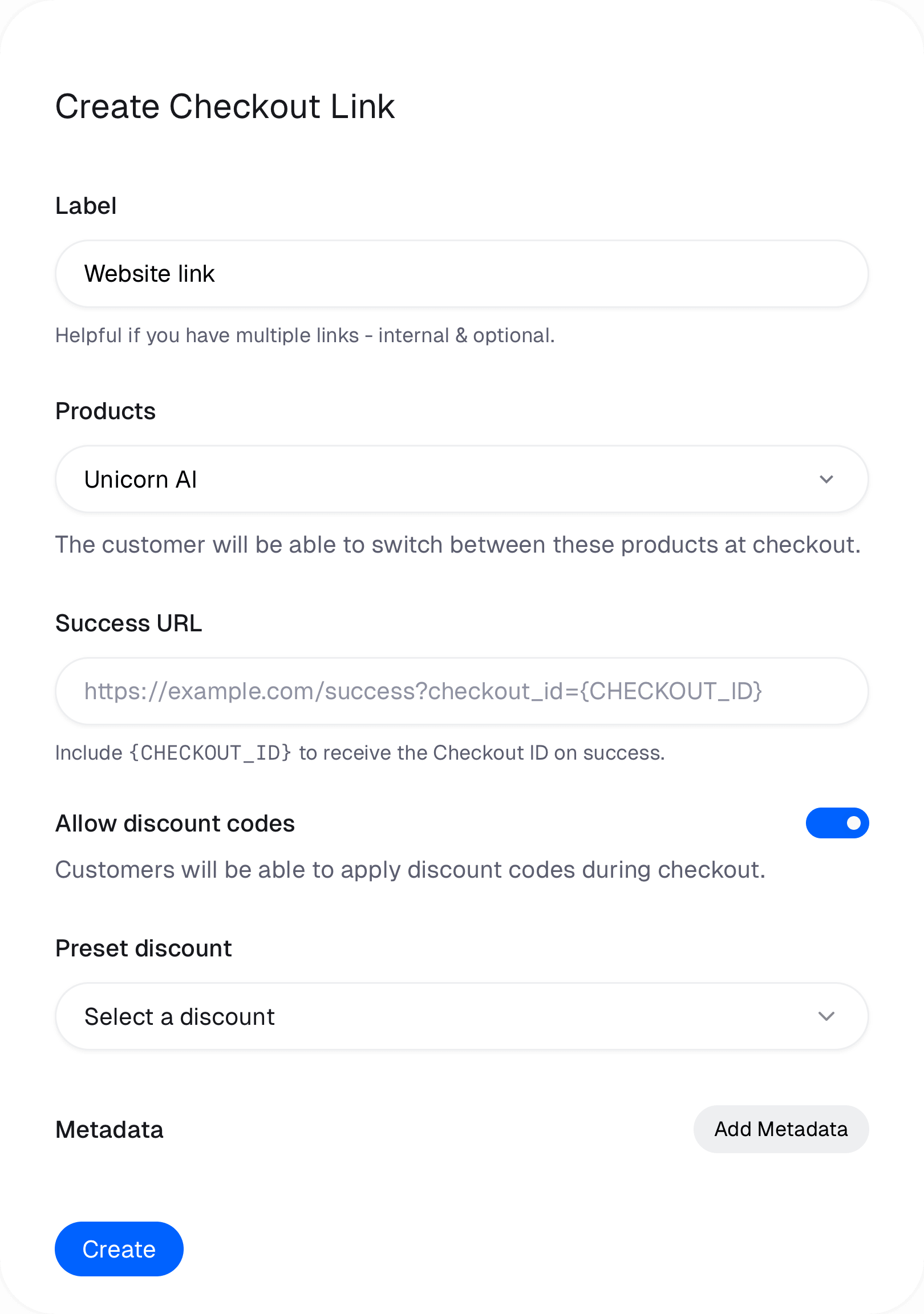
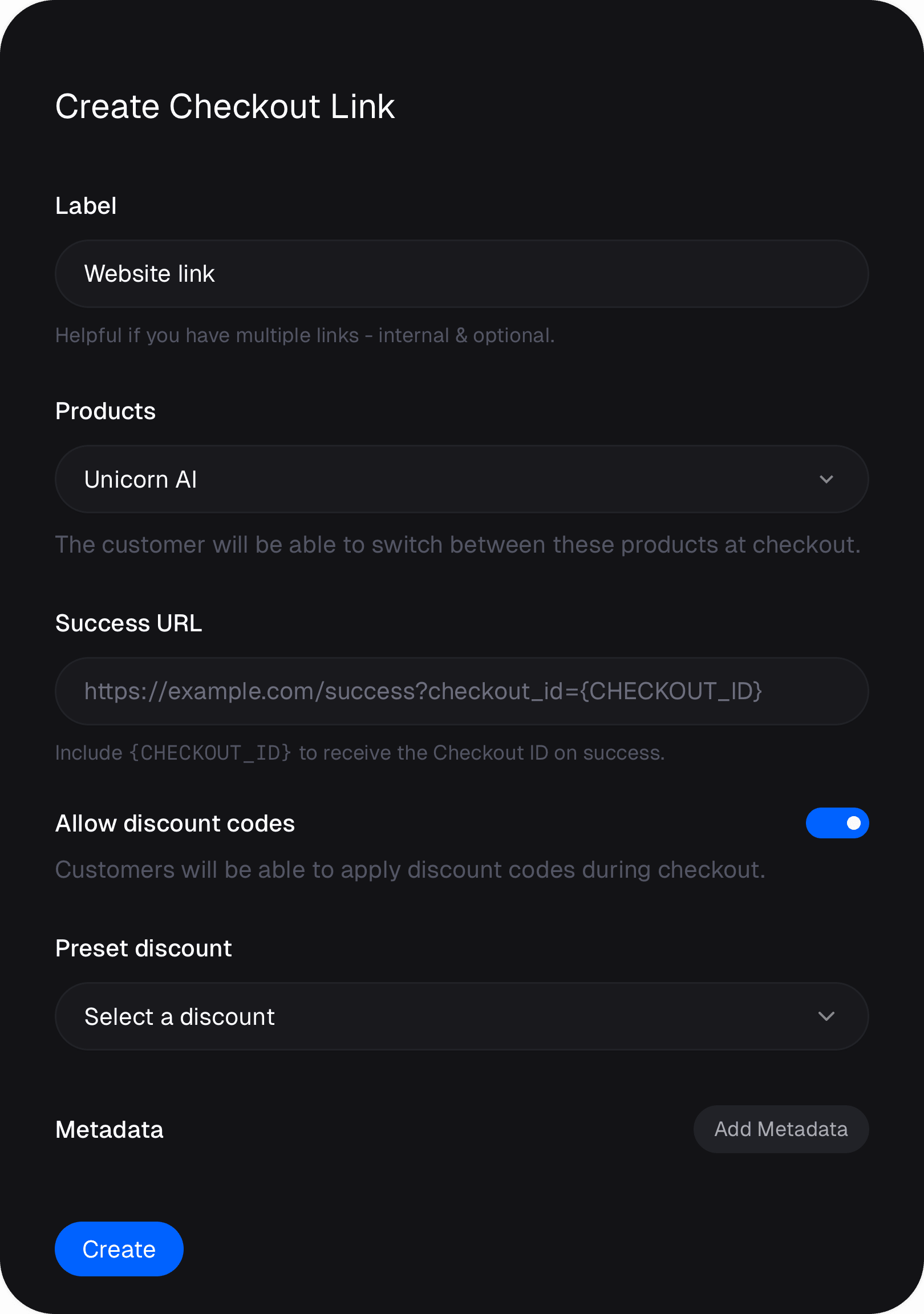
Label
This is an internal name for the Checkout Link. It’s only visible to you.Products
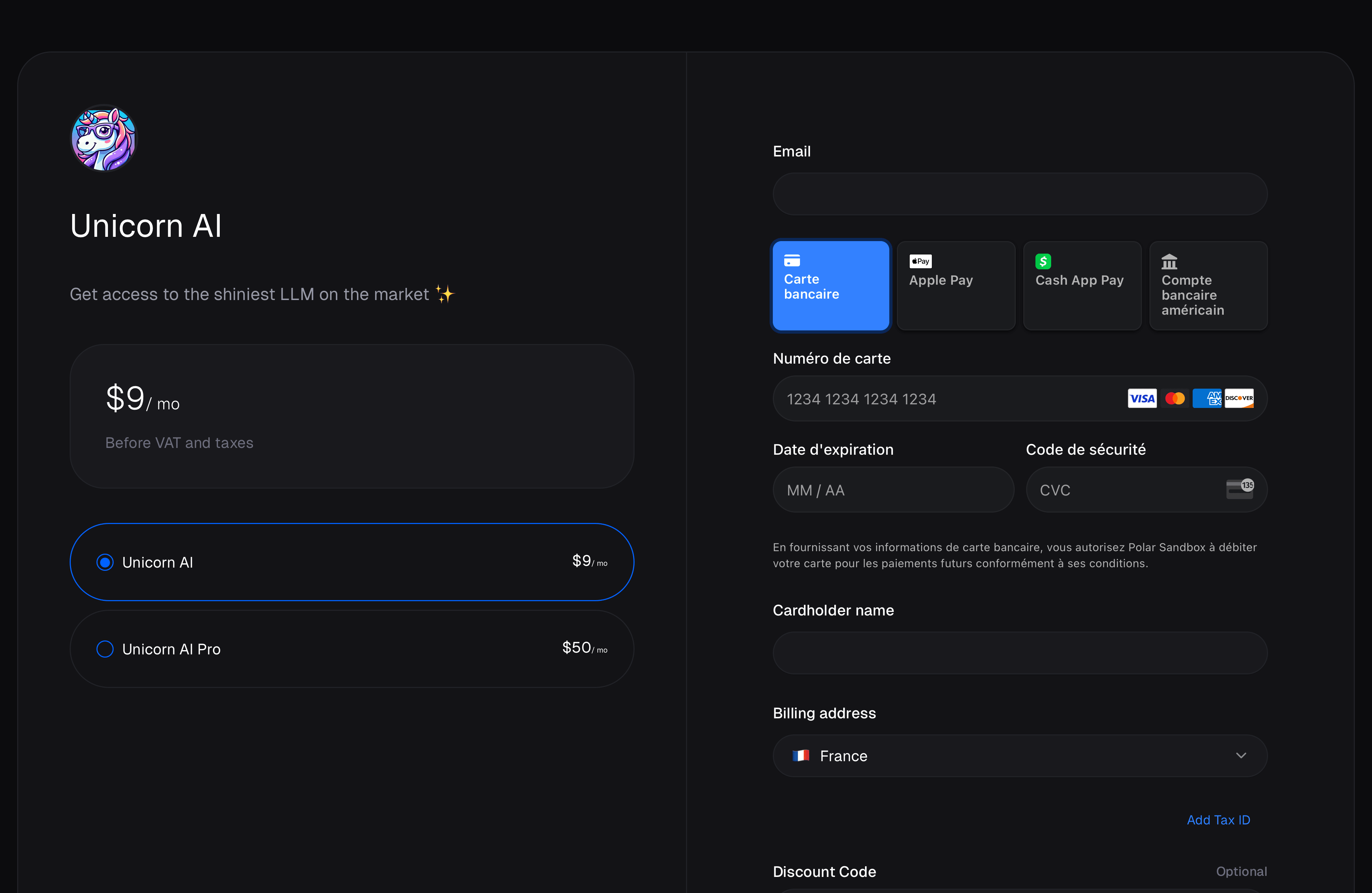
You can select one or several products. With several products, customers will be able to switch between them on the checkout page.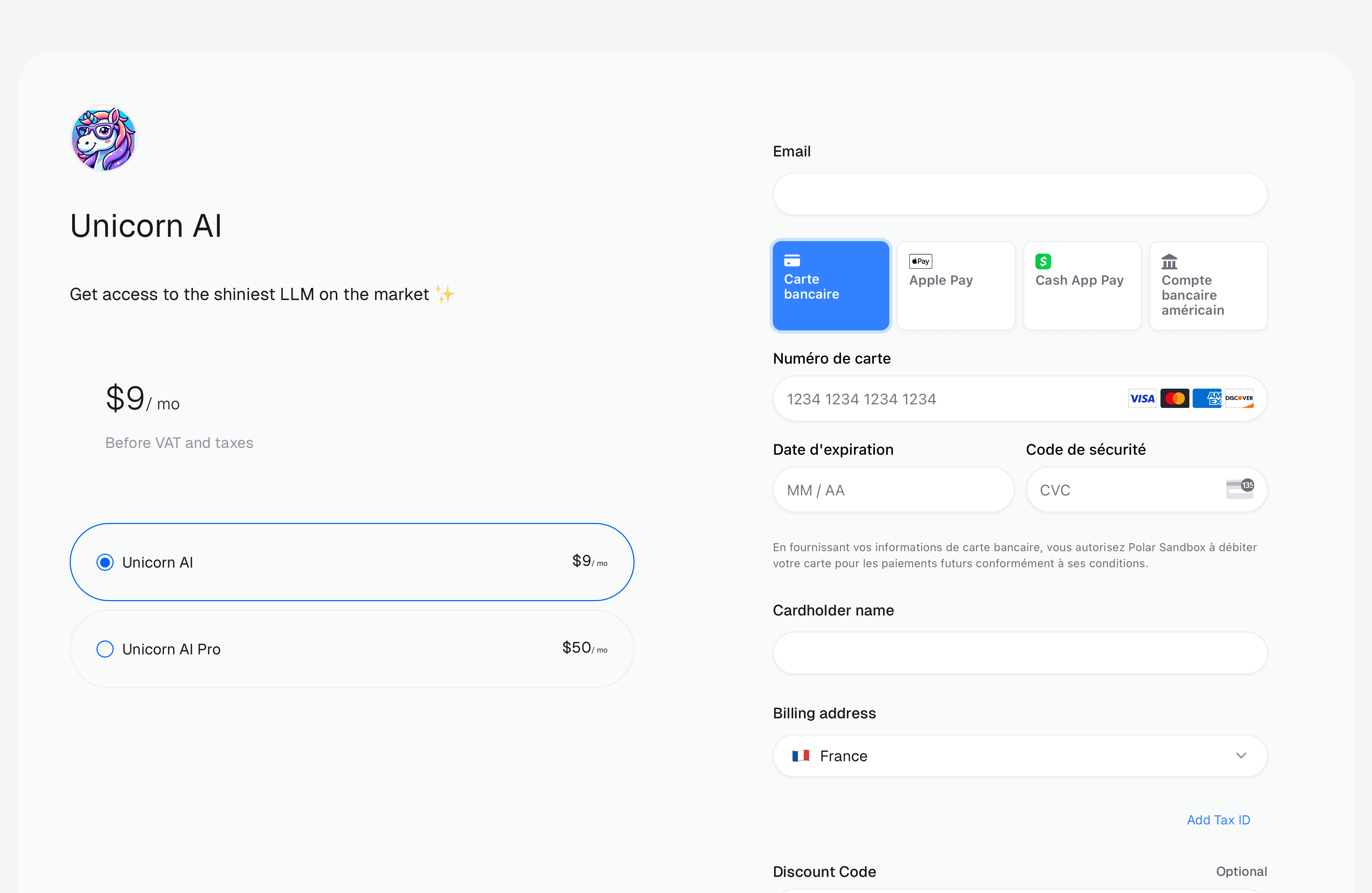
Discount
You can preset a discount on the Checkout Link: it will be automatically applied when the customer lands on the checkout page — no action needed from the customer. This is particularly useful for running promotions or offering special pricing through specific links. If Allow discount codes is enabled, customers can still manually enter other discount codes during checkout, even when a discount is preset.Metadata
This is an optional key-value object allowing you to store additional information which may be useful for you when handling the order. This metadata will be copied to the generated Checkout object and, if the checkout succeeds, to the resulting Order and/or Subscription.Using Checkout Links
You can share the Checkout Link URL on your webpage, social media, or directly to customers.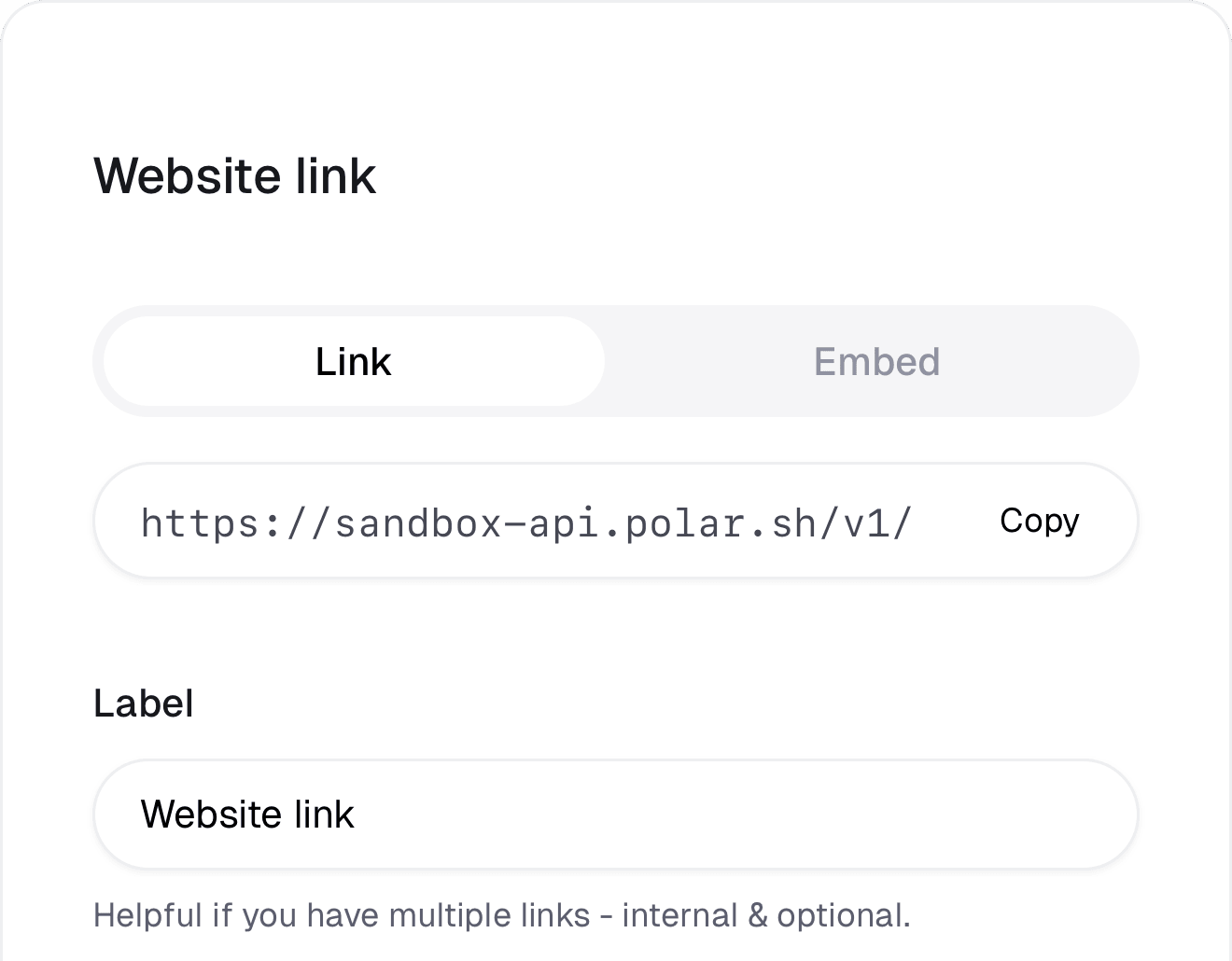
Query parameters
You can pass optional query parameters to your Checkout Links.Prepopulate fields
You can prefill the checkout fields with the following query parameters:Prefill customer email at checkout
Prefill customer name at checkout
Prefill the discount code field in the checkout form. The code will be pre-populated in the input field so the customer can see it. This only works with discounts that have a code set — see Discounts.This is different from presetting a discount in the Checkout Link settings: a preset discount is silently and automatically applied, whereas
discount_code simply pre-populates the code input field.Prefill amount in case of Pay What You Want pricing
Prefill checkout fields data, where
{slug} is the slug of the custom field.Store attribution and reference metadata
The following query parameters will automatically be set on Checkoutmetadata.
Your own reference ID for the checkout session.
UTM source of the checkout session.
UTM medium of the checkout session.
UTM campaign of the checkout session.
UTM content of the checkout session.
UTM term of the checkout session.